192.168.1.254 Router Login Guide (2026 Guide)
A plain-English walkthrough for opening the 192.168.1.254 router login page, signing in with the details on your router, and fixing the problems that usually stop people at the first step.
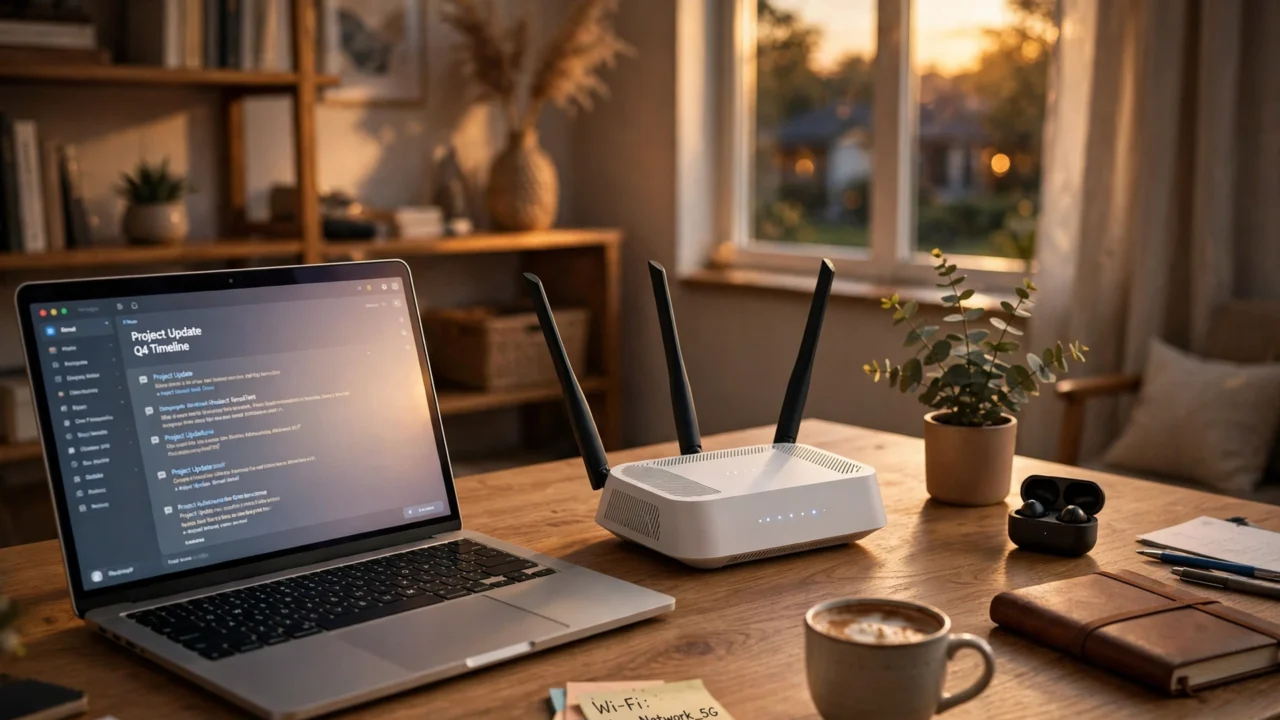
Most people only think about their router on the day the Wi-Fi stops behaving. A new device will not connect, a guest asks for the password you set two years ago and promptly forgot, or the connection keeps dropping in one room and nowhere else. That is usually the moment someone types an address like 192.168.1.254 into a browser and hopes a settings page appears. Sometimes it does. Sometimes nothing happens at all, and the whole thing starts to feel far more technical than it really is.
Here is the reassuring part: logging in to a router is mostly a matter of being on the right network, typing the address in the right place, and using the right set of credentials. The confusing part is that there are two different passwords involved, several addresses that look almost identical, and a handful of small mistakes that produce exactly the same blank result. Once you can tell those apart, the process becomes a five-minute job rather than an afternoon of guessing.
One quick note on spelling, because it trips up a lot of searches. You may have arrived here after typing 192.168.l.254, with a lowercase letter L where the number 1 should be. That is a very common mistyping of 192.168.1.254, and browsers cannot turn it into a working address. If your search or your address bar contains a letter in that spot, swap it for the digit 1 and try again. The rest of this guide uses the correct numeric form, 192.168.1.254, throughout.
In this article:
- What 192.168.1.254 actually is, and why it only works at home
- How to open the router login page step by step
- Where to find your router username and password
- What you can safely change once you are inside
- What to do when the page will not load or the password fails
- The security habits worth adopting while you are there
- Answers to the questions people ask most about router logins
What 192.168.1.254 Actually Is
Think of 192.168.1.254 as a local address, not a website. When you visit an ordinary website, your browser travels out across the internet to a public server. When you enter 192.168.1.254, your browser is instead asking a device on your own home network — in most cases your router — to show you its built-in settings page. That is why the same address can belong to routers in millions of different homes at once, and why it stops working the moment you are not connected to that network. It is a bit like a room number inside a building: useful once you are inside, meaningless from the street.
Key: 192.168.1.254 — A private IPv4 address commonly assigned to a home router as its gateway address, used to open the router’s admin or settings page from a device on the same local network.
Key: Gateway — The device on a local network, usually the router, that traffic passes through on its way to the internet.
Key: Private address — An address reserved for use inside local networks, not reachable directly from the public internet.
Not every router uses 192.168.1.254. Plenty use 192.168.1.1, 192.168.0.1, or something else entirely, and some internet providers set their own defaults. So if 192.168.1.254 gives you nothing, that does not necessarily mean you did something wrong. It may simply mean your router lives at a different address, and this guide will show you how to find the right one rather than keep hammering at the wrong door.
Before You Start: Three Things to Check
First, connect to the right network. You need to be on the Wi-Fi network run by the router you want to manage, or plugged into it with an Ethernet cable. A wired connection is often the calmer option when Wi-Fi itself is the problem, because it removes the wireless link from the equation entirely. If you are on mobile data, on a neighbour’s Wi-Fi, or on a VPN that routes your traffic elsewhere, the router’s local page will not appear, no matter how carefully you type.
Second, use a regular browser on a phone, tablet, or computer. Any mainstream browser works. What matters is where you type the address: it must go in the address bar at the top, not in a search engine’s search box. Typing it into a search box will just return search results about the address, which is a surprisingly common dead end. If you see search results instead of a login page, you have almost certainly typed it in the wrong box.
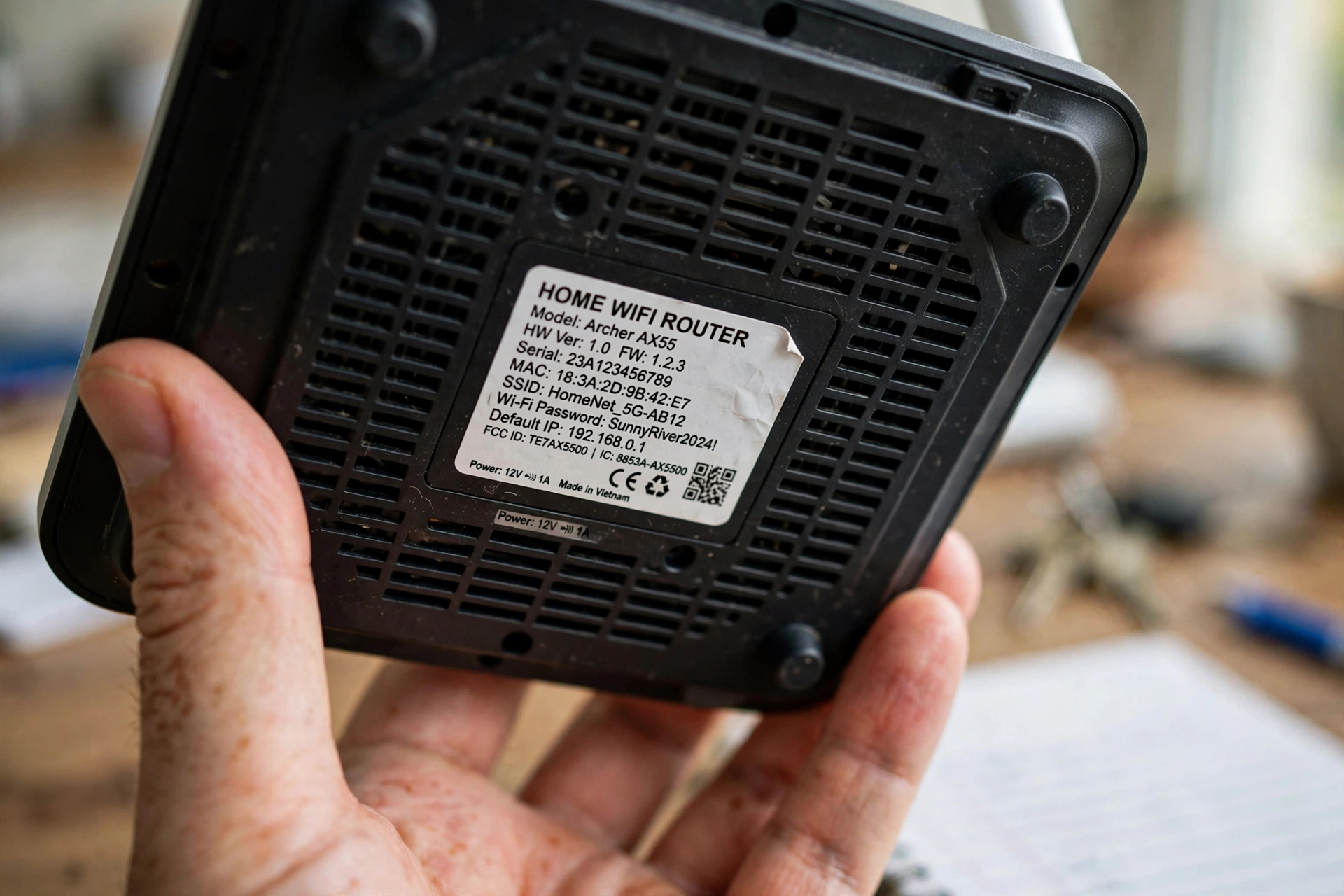
Third, have the router itself within reach, or at least know where it is. The sticker on the bottom or back of the router is the single most useful object in this whole process. It usually carries the default admin username and password, the default Wi-Fi name and password, and sometimes the router’s own login address. Take a photo of that sticker once you have found it — not to share anywhere, but so you have it handy the next time you need it without crawling behind furniture.

How to Log In at 192.168.1.254, Step by Step
Step 1 — Connect to your router’s network
Join the Wi-Fi network you want to manage, or connect an Ethernet cable between your computer and the router. If the Wi-Fi password has been changed and forgotten, the Ethernet route is your friend here, because it does not ask for the wireless password. If neither option is available, pause and sort the connection first; nothing later in this guide can work without it.
Step 2 — Open a browser and enter the address
Open your browser, click into the address bar, and type http://192.168.1.254, then press Enter. You can leave off the http:// part in most browsers and just type 192.168.1.254. Do not add www, do not add .com, and do not put spaces around the dots. Any of those turns a local address into something the browser treats as a web search or a broken website address. If a security warning appears saying the connection is not private, that is normal for many router pages, which often use a self-signed certificate; on your own home network, proceeding to the local page is a routine step, though you should never enter admin credentials on a login page you reached while connected to an unfamiliar public network.
Step 3 — Enter the admin username and password
The login page will ask for a username and a password. These are the router’s admin credentials, and they are not the same as your Wi-Fi password — a distinction worth repeating, because mixing the two up is the most common reason a correct login still seems to fail. Check the sticker on the router first. If the credentials there do not work, someone may have changed them at some point, in which case you will need to consider the reset option described below rather than guessing endlessly. Type carefully, watch for capital letters, and remember that passwords are case-sensitive.
Step 4 — Look around before changing anything
Once you are in, take a slow look at the dashboard before touching a setting. Router menus differ wildly between brands and models — some are plain and text-heavy, others look almost like apps — but the sections tend to rhyme: wireless settings, connected devices, security, and administration. Knowing roughly where things live before you need them in a hurry saves a lot of fumbling later, and it means you can find the way back if a change has an unexpected effect.
What You Can Change Once You Are Inside
The wireless settings page is where most visits end up. There you can change your Wi-Fi network name, usually called the SSID, and your Wi-Fi password. Changing the password will disconnect every device on the network, including the one you are using, so do it when you have a few minutes to reconnect phones, laptops, smart speakers, and anything else that depends on Wi-Fi. Keep a note of the new password somewhere safe and private, and pick something long enough that a casual guesser cannot land on it, but memorable enough that you will not be locked out of your own network next month.
You can also see which devices are connected, which is genuinely useful when the connection feels slow. A forgotten old phone, a smart TV updating in the background, or a guest device still hanging around can all explain a sluggish evening. Most routers let you block or pause an unfamiliar device, though it is worth checking with everyone in the household first — the mystery device is often a family member’s tablet rather than an intruder.
Other settings are best left alone unless you have a specific reason to change them. Parental controls and guest networks are handy when you actually need them: a guest network, for example, lets visitors get online without handing them the password to your main network. Firmware updates, found in the administration or system section, are worth doing when the router offers them, because they patch security issues and fix bugs. Channel settings, DNS settings, and port forwarding all have their uses, but changing them blindly can break things that currently work, so treat them as tools for a particular job, not as general tidying.
When the Login Page Will Not Load
A blank page or an error after entering 192.168.1.254 usually has one of a few causes, and working through them in order beats trying everything at once. The table below covers the most likely culprits and the fix to try first for each.
| Problem you see | Most likely cause | Try this first |
|---|---|---|
| Search results instead of a login page | Address typed into a search box | Type 192.168.1.254 into the browser address bar instead |
| Page times out or cannot be reached | Not on the router’s network, or wrong gateway address | Check your Wi-Fi connection, or find your gateway address in your device’s network settings |
| A different router brand’s page appears | Another device on the network answers at that address | Confirm you are on the right network and check the router sticker for its own address |
| Page loads but looks broken | Browser cache or an old saved page | Hard-refresh the page, or try a different browser |
| It worked yesterday but not today | Router or device needs a restart | Power the router off for thirty seconds, then back on, and retry |
Finding your gateway address is the fallback that settles the “wrong address” question for good. On a Windows computer, the network settings or a command prompt can show the default gateway for your connection. On a Mac, it appears in the network settings for the active connection. On a phone, it is usually listed in the details of the connected Wi-Fi network. Whatever that gateway address says is the address your router actually answers at — use that instead of 192.168.1.254 if they differ.
If you have access to a second device, try the same address from it. That one test splits the problem cleanly in half: if the second device reaches the page, the trouble is with the first device or its browser; if neither device reaches it, the trouble is with the network or the router itself, and a restart is the sensible next move.
When the Password Does Not Work
A rejected password is frustrating, but it narrows things down rather than broadening them. First, double-check the obvious: caps lock, an extra space at the end, and the difference between the Wi-Fi password and the admin password. If you are certain you are using the admin credentials from the sticker and they still fail, the most likely explanation is that the credentials were changed after the router was set up — by you, by a previous occupant, or by the installer who set the connection up.
At that point, the honest fix is a factory reset, and it is worth understanding what that means before reaching for it. A factory reset returns the router to the state it left the factory in: the admin credentials go back to the sticker defaults, the Wi-Fi name and password revert too, and any custom settings disappear. That is why it is a last resort rather than a first step, and why you should only do it when you can afford to set the Wi-Fi up again afterwards. The usual method is a small recessed button on the router, held down for around ten seconds with a paperclip, though the exact method varies by model, so check the manual for yours if you can. After a reset, log in with the sticker credentials immediately and change the admin password to something of your own.
A gentler possibility is worth checking first: some internet providers print the admin credentials on the paperwork or the account portal that came with the service, and some set the admin password to something specific to your account. If your provider supplied the router, a quick look at their documentation can save you a reset.
Router Login Versus Wi-Fi Password: The Difference That Matters
| Router admin login | Wi-Fi password | |
|---|---|---|
| What it unlocks | The router’s settings pages | The wireless network itself |
| Where it is found | Sticker on the router, or set by whoever configured it | Sticker on the router, or changed in the wireless settings |
| Who needs it | Whoever manages the router | Everyone who wants to use the Wi-Fi |
| If you change it | You need the new one next time you manage the router | Every device must reconnect with the new password |
| If you forget it | Factory reset is usually the only recovery | Log in to the router and read or change it in wireless settings |
Keeping that table in mind prevents the classic loop of entering the Wi-Fi password on the admin page, being rejected, and concluding the router is broken. The two credentials protect different doors.
Security Habits Worth Adopting While You Are In
The single most valuable change you can make is replacing a default admin password with one of your own. Default credentials are printed on stickers and, in many cases, documented publicly, so leaving them in place means anyone who can reach your local network — or, worse, anyone who tricks their way onto it — can walk into the settings. A strong admin password does not need to be exotic; it needs to be long, unique to the router, and stored somewhere you can actually find it again.
The same logic applies to the Wi-Fi password, though with a different trade-off: it needs to be shareable with guests without being guessable by strangers. Changing it after a houseguest-heavy period, or after someone who should no longer have access leaves, is a reasonable habit rather than paranoia. Turning on the router’s automatic firmware updates, if offered, is another quiet win, since it keeps security fixes arriving without you having to remember to check.
Finally, be careful about who you let into the admin pages. There is rarely a good reason to share the admin password with visitors, and a guest network exists precisely so you do not have to. The admin login is a household-management credential, not a hospitality one, and treating it that way keeps the network’s settings in the hands of the people responsible for them.
Frequently Asked Questions
Is 192.168.1.254 a website I can visit from anywhere?
No. It is a private address that only has meaning on the local network of the router it belongs to. From another network, or from mobile data, the address will not take you to your router, and in some cases it may not load anything at all. That is by design: private addresses are not meant to be reachable from the public internet.
Why does 192.168.1.254 work on my neighbour’s router but not mine?
Different routers and providers use different default addresses. Your neighbour’s router may genuinely use 192.168.1.254 while yours uses 192.168.1.1, 192.168.0.1, or a provider-specific address. Check your device’s gateway address to find the one your network actually uses.
Can I log in to my router from my phone?
Yes, in most cases. Connect your phone to the router’s Wi-Fi, open the browser, and enter the address in the address bar. Router pages are not always pretty on a small screen, but the login and the main wireless settings usually work fine. For bigger changes, a computer screen makes the menus easier to navigate.
What happens if I change the Wi-Fi password from the router page?
Every device on that network will disconnect and will need the new password to reconnect. That includes phones, laptops, smart TVs, and smart home devices, some of which are fiddly to update. Change the password when you have time to walk around and reconnect things, and keep the new password written down somewhere safe.
Is it safe to log in to the router page when a browser warns about security?
On your own home network, a warning about a router page’s certificate is common, because many routers use self-signed certificates rather than publicly verified ones. Proceeding to a local address on a network you trust is a routine step. The warning matters more as a general rule for public websites, where you should never enter sensitive credentials on a page your browser flags.
Do I need the internet to be working to open the router page?
No, and this is a useful thing to know. The router page lives on the router itself, so you can usually open it even when the broadband connection is down, as long as you are connected to the router’s local network. That makes the router page a good first stop when diagnosing an outage, since it can tell you whether the problem is local or with the connection beyond the router.
For a broader look at keeping home tech running smoothly, the guides on The Modern Post cover everyday digital tools in the same plain-English style, and readers sorting out a slow connection may also find the home networking notes on Daily Orvix useful background.
Read Also: 984 Area Code: Raleigh Research Triangle Cities Guide
#1921681254 #RouterLogin #WiFiSettings #HomeNetwork #InternetTips

Related Articles

n8n HTTP Request Node: Complete Documentation Guide
The HTTP Request node is how n8n talks to almost any API. This guide explains its…
Location of Area Code 609 (Complete Guide): Where Is 609 and What You Need to Know
Area code 609 is a New Jersey area code covering parts of the state including the…

What Is 4Download? Is It Safe? Everything You Need to Know (2026 Guide)
4Download promises free versions of expensive software, but the safety record is poor. This guide explains…
1 Comment