Http Error 413 Request Too Large Fix (2026 Guide)
HTTP error 413 appears when a file or request is larger than the server accepts. This guide explains the causes and the fixes for visitors and site owners.
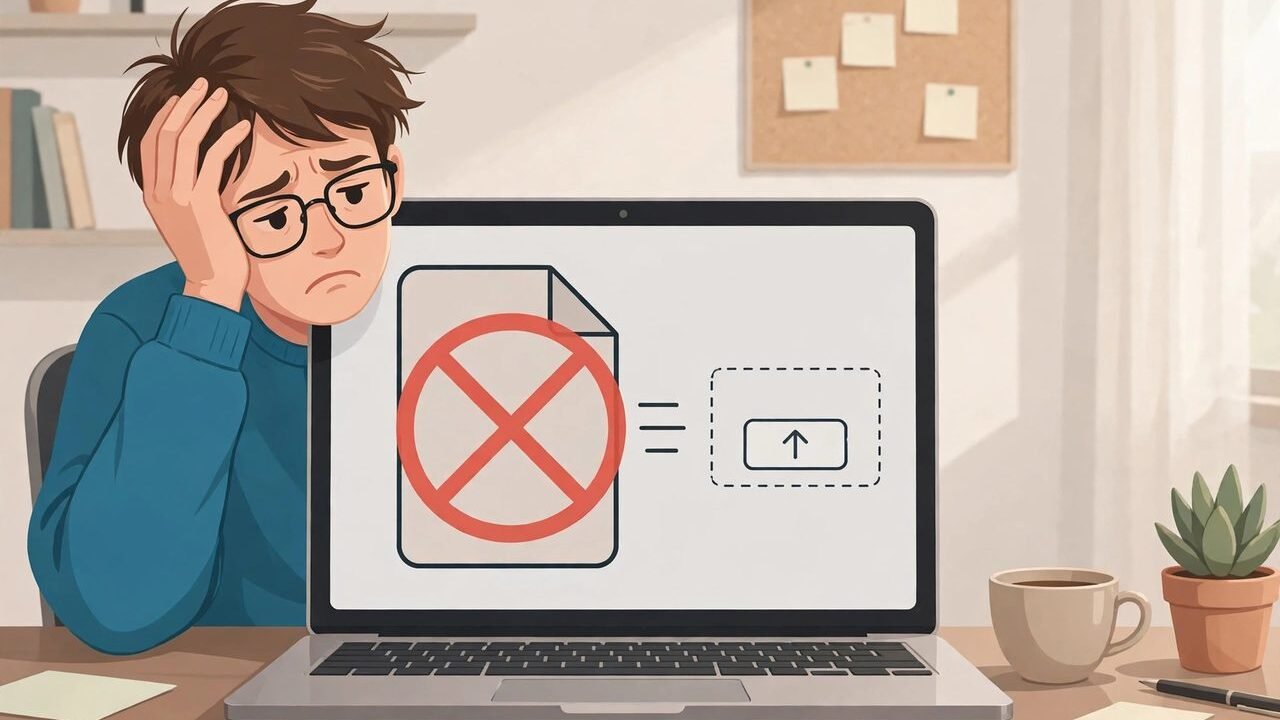
You click upload, wait a few seconds, and instead of a success message you get a short, blunt error: 413. The file never arrives, the page may look broken, and there is no obvious button to fix it. It is a frustrating moment, especially when the same file uploaded fine somewhere else.
HTTP error 413 tells you something specific, and that is good news. It does not mean your file is corrupt, your account is blocked, or the website is down. It means the request you sent was larger than the server is willing to accept. Once you know which limit you hit, the fix is usually straightforward.
This guide explains what http error 413 means, why it appears, and how to fix it whether you are uploading a file or running the website that rejects it.
In this article
- What http error 413 means
- Why the error appears
- Common causes of a 413 error
- How to tell whether the problem is your file or the server
- Fixes if you are a visitor or user
- Fixes if you own the website
- Raising the limit versus shrinking the file
- How to prevent 413 errors
- Frequently asked questions
What HTTP Error 413 Means
HTTP error 413 is a client error response sent by a web server when the size of a request exceeds the limit the server has set.
Key: Error code. 413.
Key: Older name. Request Entity Too Large.
Key: Current name. Content Too Large.
Key: What it means. The request body is bigger than the server allows.
Key: Who sets the limit. The website owner, the hosting provider, or a proxy or content delivery network in front of the site.
Key: Typical trigger. Uploading a file that is larger than the allowed maximum.
The older name, Request Entity Too Large, still appears on many servers and in many help articles. The newer name, Content Too Large, means the same thing. If you see either phrase next to a 413 code, you are dealing with the same error.
It helps to understand what a “request” is here. When you submit a form, upload a photo, or send a video to a website, your browser packages that data into a request and sends it to the server. The server checks the size of that package before it processes it. If the package is too big, the server refuses it outright and returns the 413 status code. It does not partially accept the file or save the first part of it. The whole request is rejected.
That behaviour is deliberate. Size limits protect servers from being overwhelmed by enormous uploads, accidental or malicious, and they keep shared hosting fair so one user’s giant upload does not slow everyone else down. The limit is rarely personal. It is simply a rule the server applies to every request it receives.
Why the Error Appears
A 413 error appears when the size of what you send crosses a threshold the server enforces. That threshold can sit in several places, and you usually cannot see it from the browser. A form might say “maximum file size 10 MB” while the server quietly enforces a smaller limit, or the form might say nothing at all and let the server deliver the bad news.
Large media files are the most common trigger. Uncompressed photos from a modern phone, long videos, high-resolution design files, and bulky document archives can all cross a limit in a single upload. A single photo can be surprisingly large, and a short video recorded in high definition can be many times larger than a typical upload limit.
The error can also appear without any file upload at all. A form that sends a very long block of text, a request carrying many fields, or data sent by an application rather than a browser can all exceed a request-size limit. This is less common for everyday browsing, but developers and site administrators run into it when an application sends large payloads to an API or a server endpoint.
Another important point is that the limit you hit may not belong to the website itself. Requests often pass through layers: a content delivery network, a firewall, a load balancer, or a reverse proxy. Each layer can enforce its own size limit, and the strictest one wins. That is why a site owner can raise a limit in one place and still see the error — another layer further up the chain may still be blocking the request.
Common Causes of a 413 Error
A file larger than the upload limit
This is the most common cause by far. The website allows uploads up to a certain size, and your file is bigger than that. The fix is either a smaller file or a higher limit, and the rest of this guide walks through both options.
A server limit set lower than the application limit
Content management systems and web applications often have their own upload settings, but the web server underneath them has its own limits too. If the server limit is lower, it decides the outcome. A site may advertise generous uploads while the server quietly caps them at a much smaller size, which confuses everyone until someone checks both settings.
A proxy or content delivery network limit
Many websites sit behind a proxy or a content delivery network that filters traffic before it reaches the origin server. These services commonly enforce their own request-size limits to protect against abuse. When one of these layers rejects a request, the visitor still sees a 413 error, even though the website’s own server would have accepted the file.
A misconfigured upload setting
Limits are sometimes set by accident. A hosting migration, a server update, or a copied configuration file can leave a site with a limit far smaller than intended. A site that used to accept large uploads may suddenly start rejecting them after a change nobody connected to uploads. When a 413 error appears out of nowhere on a site that previously worked, a configuration change is a likely suspect.
Chunked or interrupted uploads behaving badly
Some upload tools split large files into smaller pieces and send them one at a time. If the tool is misconfigured, or if the server does not handle chunked uploads the way the tool expects, the server may measure the request incorrectly or reject it. A poor internet connection can also complicate uploads, though a connection problem on its own usually produces a different error, such as a timeout, rather than a 413.

How to Tell Whether the Problem Is Your File or the Server
Start with the simplest test: try a smaller file. If a small file uploads without trouble and a large one fails, you have almost certainly hit a size limit rather than a broken form or a faulty account. Note roughly where the failure starts. If files under a certain size always work and files above it always fail, that boundary is the effective limit.
Next, check whether the site states a maximum file size anywhere on the upload page, in its help pages, or in its terms. If the stated limit is larger than your file and the upload still fails, the server-side limit is probably lower than the advertised one, and only the site owner can fix it.
Also try a different browser or device if you can. This rarely changes a genuine size limit, but it rules out a browser extension or a corrupted cache interfering with the upload. If the same file fails everywhere, the limit is on the server side.
Finally, consider whether other people hit the same error on the same site. If friends or colleagues uploading similar files see the same message, the limit is a property of the site, not of your file or connection. That distinction matters because it tells you whether to shrink your file or contact the site owner.
Fixes If You Are a Visitor or User
Compress the file
Compression is usually the fastest fix. Photos can be resized or saved at a slightly lower quality, videos can be re-encoded at a lower resolution or bitrate, and documents can be saved in a more efficient format. Free tools built into most operating systems can do this, and many websites offer their own compression tools. A modest reduction in quality often cuts the file size dramatically while leaving the result perfectly usable.

Split the file into smaller parts
If the site accepts multiple files, split a large upload into several smaller ones. A long video can be cut into shorter clips, a large archive can be divided into volumes, and a batch of photos can be uploaded in groups rather than all at once. Check first that the site will accept the parts in that form — a video split into pieces is only useful if the recipient can play the pieces or rejoin them.
Change the file format
Some formats are far more efficient than others. A bitmap image saved as a modern compressed format, or a video saved with a current codec, can be a fraction of the size of the original with little visible difference. Before converting, make sure the site accepts the new format, since an efficient file in an unsupported format will simply be rejected for a different reason.
Remove unnecessary data from the file
Photos often carry extra data such as location information and editing history, and documents can contain embedded fonts, tracked changes, or high-resolution images that are not needed. Stripping this extra data can shrink a file noticeably. Most photo and document tools offer an export or “save for sharing” option that does exactly this.
Use a different upload method if the site offers one
Some sites provide an alternative way to deliver large files, such as a desktop uploader, a cloud-storage link, or a dedicated transfer page with a higher limit. If the standard web form rejects your file, look for one of these options before giving up. If none exists, contact the site’s support team, explain the file size and the error code, and ask whether the limit can be raised or another delivery method arranged.
What not to do
Do not repeatedly retry the same oversized upload in the hope that it will eventually pass. A size limit does not change between attempts, so retries only waste time and bandwidth. Do not rename the file or change its extension to disguise its size either — the server measures the actual data, not the name, and a disguised file may be rejected or, worse, accepted in a form nobody can open.
Fixes If You Own the Website
Site owners have more options, but they also need to find which layer is enforcing the limit. Work through the layers from the application outward, testing after each change.

Check the application settings first
If your site runs a content management system, check its media and upload settings. Many systems let you set a maximum upload size from the admin dashboard. Also check any upload plugins or form plugins, which sometimes impose their own limits on top of the system default. Raise the application limit to the value you actually want, then test.
Raise the web server limit
The web server is the most common hidden bottleneck. On Nginx, the relevant setting is client_max_body_size, which caps the size of the request body a client may send. On Apache, the LimitRequestBody directive plays a similar role. Both live in the server configuration, not in the website’s code, so changing them usually requires server access or help from your hosting provider. Set the value to something that fits your real needs — generous enough for legitimate uploads, but not unlimited.
Raise the scripting language limits
If your site runs on PHP, two settings matter: upload_max_filesize, which caps a single uploaded file, and post_max_size, which caps the entire request including all form fields. The second value must be at least as large as the first, or the larger file limit can never take effect. Both are set in the PHP configuration, and many hosts let you adjust them from a control panel. After changing them, restart the web server or PHP process if your host requires it, then test with a file near the new limit.
Check the proxy and content delivery network
If your site sits behind a proxy, load balancer, or content delivery network, check its request-size settings as well. These services often have their own limits, and some require a plan upgrade to raise them. When you cannot change the limit at that layer, your practical maximum is whatever that layer allows, no matter how high you set the limits behind it.
Consider chunked or resumable uploads
For sites that genuinely need large uploads, such as video platforms or design collaboration tools, chunked uploads are a better answer than an ever-larger limit. The uploader splits the file into small pieces, sends them one at a time, and the server reassembles them. This approach avoids a single enormous request, survives interrupted connections more gracefully, and gives users a progress bar that actually reflects reality. It requires development work, but it scales far better than simply raising a number.
Test after every change
Upload a file just under the new limit and one just over it. The first should succeed and the second should fail cleanly. If both fail, another layer is still enforcing the old limit. If both succeed, the limit is effectively open, and you should tighten it to a sensible value. Testing with boundary sizes is the quickest way to confirm which setting is actually in control.
Raising the Limit Versus Shrinking the File
| Approach | Pros | Cons |
|---|---|---|
| Raising the server limit | Users upload without extra steps; fewer support requests; works for every visitor | Larger uploads use more storage and bandwidth; abuse risk grows; may need a hosting upgrade |
| Compressing or splitting the file | No server change needed; faster uploads; smaller storage footprint | Extra work for every user; some quality loss possible; split files need reassembly |
| Using chunked uploads | Handles very large files well; survives interruptions; good user experience | Requires development effort; more complex to build and maintain |
The right choice depends on who you are. A visitor with one large file should almost always compress or split it, because that fix is immediate and under their control. A site owner who regularly receives large legitimate files should raise the limit to a sensible level, and invest in chunked uploads if large files are core to the service. There is no virtue in a limit so low that normal users cannot work, and no virtue in a limit so high that a single abusive upload can strain the server.
How to Prevent 413 Errors
Prevention starts with clear communication. If your site accepts uploads, state the maximum file size on the upload page itself, in plain language, before the user spends time selecting a file. A limit discovered only through an error message feels like a fault even when it is working as designed.
Validate file size in the browser before the upload begins. A simple client-side check can warn the user immediately that a file is too large, instead of letting them wait through a long upload only to be rejected at the end. This does not replace the server-side limit — browsers can be bypassed, so the server must always enforce its own rule — but it dramatically improves the experience for honest users.
Choose limits based on real usage. Look at the sizes of files your users actually send, and set the limit comfortably above the normal range while still far below anything reckless. Review the limit when your service changes: a site that starts accepting video will need a different limit from one that only accepted profile photos.
Finally, monitor your error logs. A sudden rise in 413 responses can reveal a misconfiguration, a new type of upload your users are attempting, or a bot probing your upload endpoints. Logs turn a vague complaint — “uploads are broken” — into a precise diagnosis, and they tell you whether a fix actually worked.
Frequently Asked Questions
What does http error 413 mean in plain language?
It means the file or data you tried to send is larger than the server is willing to accept. The server refuses the whole request and returns the 413 status code instead of processing it.
Is http error 413 caused by my internet connection?
Usually not. A slow or unstable connection tends to cause timeouts or interrupted uploads, not a 413 error. If small files upload fine and large ones fail consistently, a size limit is the cause.
Can I fix http error 413 without contacting the website owner?
Often, yes. Compressing the file, splitting it into smaller parts, or changing it to a more efficient format usually brings it under the limit. If the file cannot be made smaller, only the site owner can raise the limit.
Why does the same file upload on one site but fail on another?
Because every site sets its own limit. One site may allow uploads of several hundred megabytes while another caps them far lower. The file has not changed; the rule it is measured against has.
Does http error 413 mean my file is damaged?
No. The server rejects the request because of its size, not its contents. The file on your device is untouched, and you can still open it, compress it, or upload it elsewhere.
How do I raise the upload limit on my own website?
Check the application settings, then the web server configuration, then the scripting language limits, and finally any proxy or content delivery network in front of the site. The strictest layer decides the real limit, so all of them need to allow the size you want.
Read Also: Running on http://127.0.0.1:5000 Explained in Simple Terms

Related Articles

Epic Games Active.com Account Activation Explained (2026 Guide)
If you have searched for Epic Games Active.com, you are probably trying to activate an Epic…

127.0.0.1:14444 Localhost Port Explained (2026 Guide)
Seeing 127.0.0.1:14444 usually means a program on your own computer is running a local service. This…

Running on http://127.0.0.1:5000 Explained in Simple Terms
"Running on http://127.0.0.1:5000" is your Flask development server telling you it started successfully and where to…
1 Comment