www.gmail.com Login Help, Sign-In and Recovery Guide
If you typed www.gmail.com login into search, you are looking for the fastest safe way into your Gmail inbox. This guide walks you through sign-in, recovery, and the warning signs of fake login pages.

If you searched for www.gmail.com login, you probably want one simple thing: to get into your inbox without fuss. The good news is that the address you typed does not lead to a separate Gmail website. It routes you to Google’s Gmail sign-in, where you enter the same Google Account you use for Gmail, YouTube, Drive, and the rest of Google’s services. Once you understand that one fact, everything else about signing in becomes much easier, because you stop hunting for a special Gmail login page and start using the single sign-in that Google already provides.
This guide covers the whole journey in plain language. You will learn how a normal sign-in works on a computer and on a phone, what to do when you forget your password, how two-step verification changes the process, and how to tell a genuine Google sign-in page from a lookalike page built to steal passwords. It also covers the small habits that prevent most lockouts, such as keeping a recovery phone number and recovery email address up to date while you still have access.
In this article
- What www.gmail.com login actually means
- How to sign in to Gmail on a computer
- How to sign in to Gmail on a phone or tablet
- What to do if you forgot your password
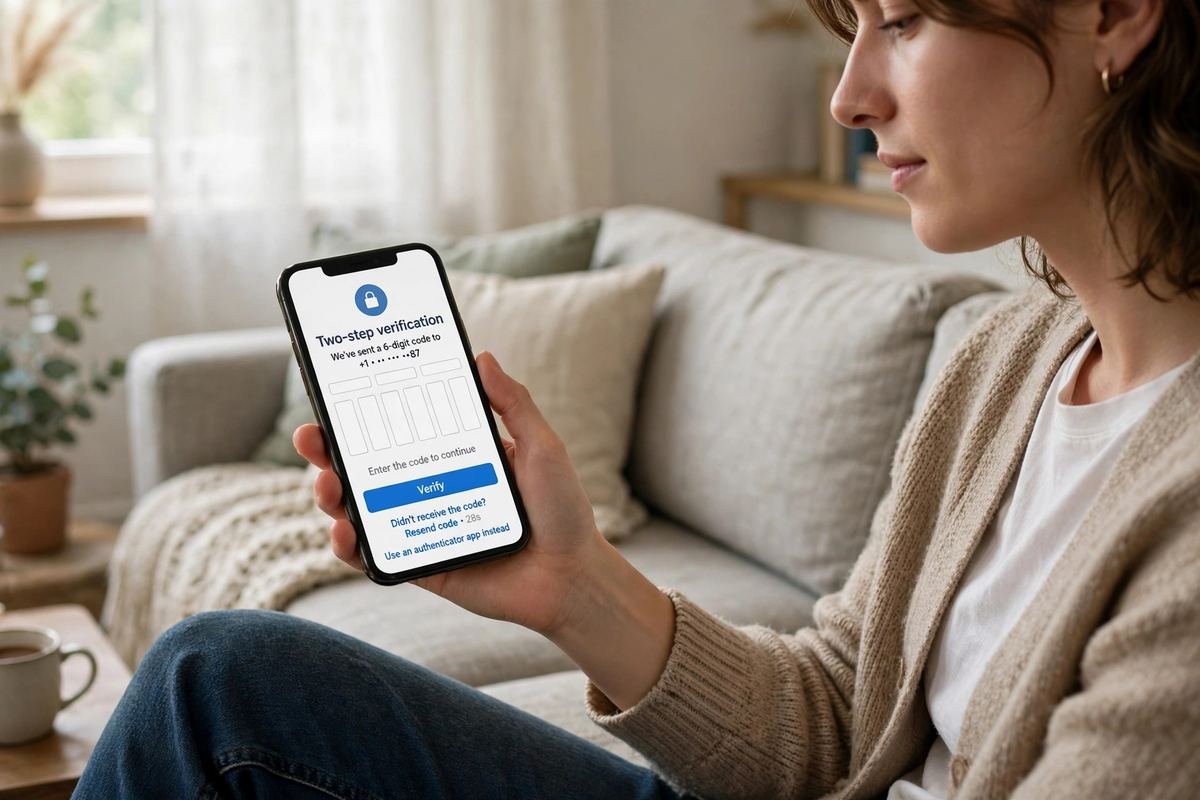
- How two-step verification works at sign-in
- Common sign-in problems and what fixes them
- How to spot a fake Gmail login page
- Everyday habits that keep your account reachable
- Frequently asked questions
What www.gmail.com login Actually Means
Key: www.gmail.com login — a search phrase people use when they want to reach the Gmail sign-in page, which is part of Google Account sign-in rather than a standalone Gmail website.
Gmail is not a separate account system. Your Gmail address is the username of a Google Account, and that account is the key to many Google products at once. That is why signing in to Gmail can also sign you in to other Google services on the same browser, and why recovering a Gmail password is really recovering a Google Account password. Thinking of it this way saves confusion later, especially when a help page talks about a Google Account instead of Gmail by name.
Another point worth knowing is that Google’s sign-in pages live on Google’s own domains. When you type a web address into your browser yourself, you control where you land. When you click a link in an email or a search advertisement, you are trusting someone else’s destination, and that is where most sign-in trouble starts. The safest habit is boring but effective: type the address yourself or use a bookmark you saved from a genuine sign-in page.
How to Sign In to Gmail on a Computer
Signing in on a computer is straightforward, and it helps to slow down for the few seconds it takes rather than rushing through the screens.
First, open your browser and go to the Gmail sign-in page by typing the address yourself or opening a bookmark you trust. You will be asked for your email address or phone number. Type your full Gmail address, including the part after the at sign, and move to the next screen. If you use a phone number linked to your Google Account, that can work as the identifier too, but your full email address is the least ambiguous choice.
Next, enter your password. Passwords are case-sensitive, so check that caps lock is off and that you are using the keyboard layout you normally use. If your browser offers to save the password, only accept that offer on a device you own and control. On a shared or public computer, decline, and sign out properly when you finish.
After the password, Google may ask for a second step. That could be a prompt sent to a phone you are already signed in on, a code from an authenticator app, a text message code, or a prompt to use a security key or passkey, depending on what you set up. Approve or enter that second step, and you will land in your inbox. If you are on your own computer and you trust it, you may see an option to stay signed in. On any computer other people use, skip that option.

Signing In When More Than One Account Is Involved
Many people have two or more Google Accounts, such as one for personal mail and one for work or school. Browsers handle this by letting you add accounts and switch between them, but it is easy to open the wrong inbox and wonder where your messages went. Before you panic about missing mail, check which account is shown in the top corner of the screen. If it is the wrong one, switch accounts rather than signing out of everything and starting over.
A related tip is to keep personal and work accounts in separate browser profiles when you use both every day. A profile keeps bookmarks, saved passwords, and signed-in accounts apart, so you spend less time untangling which account a tab belongs to. It takes a minute to set up and saves many small confusions over time.
How to Sign In to Gmail on a Phone or Tablet
On a phone, most people sign in through the Gmail app rather than a browser, and the app route is usually smoother because the phone itself can confirm your identity. Open the Gmail app, choose to add an account if yours is not listed, and enter your email address and password when asked. The app may hand you over to a Google sign-in screen inside the app or in your browser, which is normal. Complete any second step the same way you would on a computer.
If you prefer a browser on your phone, the steps are the same as on a computer, just on a smaller screen. The main difference is that typing a long password on a phone keyboard invites typos, so use the show-password option briefly to check what you typed if the screen offers it, and hide it again before you continue. Never let a phone you share with others save your password without thinking about who else picks that phone up.
One more phone-specific habit matters: keep your phone’s own lock screen secure. If your phone is unlocked and someone opens your Gmail app, they are already inside your mail. A fingerprint, face unlock, or a strong PIN on the phone is part of Gmail security, even though it has nothing to do with the sign-in page itself.
What to Do If You Forgot Your Password
Forgetting a password is common, and Google’s recovery process is designed for exactly this situation. Start from the sign-in screen and choose the forgotten-password option, or go directly to Google’s account recovery flow. You will be asked to identify the account, usually by entering your Gmail address, and then to prove that the account is yours.
Key: Recovery options — the phone number and alternate email address you added to your account earlier, which Google can use to verify you and help you reset your password.
Google typically asks for the last password you remember, even if you know it has changed since. Answer as accurately as you can, including capital letters, because a close answer still helps. Then it may offer a code sent to your recovery email or phone, a prompt on a device where you are still signed in, or another verification method tied to your account history. Follow the method you can actually complete. If the first method is unavailable, look for a try-another-way option rather than guessing repeatedly.
If none of your recovery options are reachable, the honest truth is that recovery becomes much harder. Google does not have a support line that can simply hand a free Gmail account back on request, and no third-party service can bypass the process for you. Anyone who charges a fee to recover your account is not offering a genuine shortcut. In that situation, your realistic options are to keep trying the official recovery flow after a waiting period, to regain access to an old phone number through your mobile provider if that is possible, or, if the account truly cannot be recovered, to create a new account and rebuild your recovery options properly this time.
How Long Recovery Takes and Why Patience Helps
Recovery is not always instant. Sometimes Google asks you to wait while it reviews the information you provided, and repeated failed attempts can trigger a temporary lock that forces a longer wait. This is frustrating, but it exists to stop someone else from guessing their way into your account. Trying again every few minutes usually makes things worse. A better approach is to submit your best answers once, wait for the response, and use the waiting time to check whether you still have access to any old device, recovery email inbox, or phone number that could help.
How Two-Step Verification Works at Sign-In
Two-step verification means that a password alone is not enough to sign in. After the password, Google asks for something else that proves you are the account owner. Common second steps include a prompt on a trusted phone, a code from an authenticator app, a text message code, a backup code you saved when you set the feature up, or a physical security key.
Key: Two-step verification — an extra check after your password, using a device or code only you should have, that blocks most sign-ins by someone who merely knows or guesses your password.
The most convenient second step for most people is a prompt on a phone they already use, because it asks for a single tap rather than typing a code. Authenticator app codes are a strong choice too, especially if you travel or change phone numbers, since they do not depend on mobile reception. Text message codes work well in most places but depend on your phone number staying the same. Whichever method you choose, save your backup codes somewhere safe and separate from your phone, such as printed on paper kept at home, so a lost phone does not become a lost account.
If you lose access to your second step, the recovery flow becomes your route back in, and it will ask for other evidence that the account is yours. That is why setting up more than one second-step method, where Google offers it, is worth the few minutes it takes. A second method turns a lost phone from an emergency into an inconvenience.
Common Sign-In Problems and What Fixes Them
Most sign-in failures have ordinary causes. Working through them in order saves time and avoids locking the account with repeated guesses.
| Problem | Likely cause | What to try first |
|---|---|---|
| Wrong password message | Typo, caps lock, or an old password | Retype slowly, check caps lock, try the most recent password you remember |
| Code never arrives | Weak signal, changed number, or spam filtering | Wait a minute, check signal, try another verification method |
| Prompt not appearing on phone | Phone offline, signed out, or notifications off | Connect the phone, open it, check that it is signed in to the same account |
| Signed in to the wrong inbox | Multiple accounts in the browser | Check the account shown on screen and switch accounts |
| Page will not load | Browser cache, extensions, or connection trouble | Refresh, try a private window, try another browser |
| Account temporarily locked | Too many failed attempts | Stop trying, wait, then use the recovery flow once |
A private or incognito browser window is a useful diagnostic tool. If sign-in works in a private window but not in your normal window, a browser extension, a saved cookie, or a cached page is probably interfering, and clearing those for Google’s sign-in pages often fixes it. If sign-in fails everywhere, the problem is more likely the credentials or the account itself, and the recovery flow is the right next step.
Another common trap is an outdated password saved in the browser. After you change a password, a browser may keep offering the old one, and accepting it repeatedly produces a string of failures. When you change a password, update the saved entry in your browser and on your phone at the same time, so you are not fighting your own autofill later.
How to Spot a Fake Gmail Login Page
Fake login pages are the biggest real danger around a www.gmail.com login search, because they look convincing. They copy Google’s layout, colours, and wording, and they arrive through phishing emails, text messages, search advertisements, or links posted in comments and social media. Their goal is simple: get you to type your email address and password into a page the attacker controls.
Key: Phishing page — a fake sign-in page that imitates a real service to capture the credentials typed into it.
Check the address bar before you type anything. A genuine Google sign-in page shows a Google domain in the address bar, and the address should look like the one you expect rather than a close imitation with extra words, swapped letters, or an unfamiliar domain tacked on. Lookalike domains are the classic trick: a name that reads almost right at a glance but differs by a letter, a hyphen, or an extra word. If you arrived from a link, do not trust the page on looks alone. Close it, type the address yourself, and sign in from there.
Urgency is another warning sign. Messages that claim your account will be deleted in hours, that suspicious activity requires immediate sign-in, or that you must confirm your password to keep your mail, are designed to make you act before you check. Google does send genuine security alerts, but a genuine alert never needs you to click a link in a hurry and re-enter your password on an unfamiliar page. When in doubt, ignore the link, open Gmail yourself, and check your account’s security activity from inside the account.
Also be careful with search results. Advertisements at the top of a search page can imitate official pages, and a sponsored result is not a guarantee of authenticity. Scrolling to the genuine result, or better still typing the address yourself, removes that risk entirely.

What to Do If You Typed Your Password Into a Fake Page
If you realise you entered your credentials on a suspicious page, act quickly and calmly. First, sign in through the genuine route and change your password immediately. Then review the devices signed in to your account and sign out any you do not recognise. Next, check your recovery email and phone number, because an attacker who gets in may try to change them to lock you out. Finally, turn on two-step verification if it is not already on, since that second step can block an attacker who only has your password. If you used the same password anywhere else, change it on those services too, and give each one a different password going forward.
Everyday Habits That Keep Your Account Reachable
Good account habits are dull, and that is exactly why they work. They prevent the emergencies that make people search for login help in the first place.
Start with recovery options. While you are signed in, check that your recovery phone number and recovery email address are current and reachable. If you changed numbers recently, update the account before the old number becomes a problem. Add two-step verification with a method you will actually have with you, and store backup codes somewhere safe.
Next, use a password manager or a written system you trust, and give Gmail a password you do not reuse anywhere else. Reused passwords are how a breach on an unrelated website turns into access to your mail. A unique password removes that chain reaction entirely.
Finally, review your account occasionally. A quick look at signed-in devices and recent security activity, done every few months, catches problems early, when they are still easy to fix. Signing out of old devices you no longer use is a small cleanup that reduces the number of doors into your account.
Pros and Cons of Different Sign-In Methods
| Sign-in method | Pros | Cons |
|---|---|---|
| Password only | Simple, works everywhere | Vulnerable if the password leaks or is reused |
| Password plus phone prompt | Quick approval, no codes to type | Needs a charged, connected phone nearby |
| Password plus authenticator app | Works without mobile signal, strong protection | Codes expire quickly, app must be set up in advance |
| Passkey on your device | Fast, resistant to phishing, no password to remember | Tied to the device, needs a backup method if the device is lost |
| Saved browser sign-in | Most convenient on your own computer | Risky on shared computers if you forget to sign out |
No single method is perfect for everyone. The best choice is the one you will actually use consistently, backed by a recovery option you can reach. A strong method you abandon after a week is worse than a good method you keep.
Frequently Asked Questions
Is www.gmail.com login the same as Gmail sign-in?
Yes, in practice. Typing www.gmail.com login into search is a way of asking for the Gmail sign-in page, and that page is part of Google Account sign-in. You use your Gmail address and your Google Account password, and the same sign-in can carry over to other Google services on that browser.
Why does Gmail ask for a code after my password?
That is two-step verification doing its job. After your password, Google asks for a second proof that you are the account owner, such as a prompt on a trusted phone or a code from an authenticator app. It stops most unauthorised sign-ins even when someone knows your password.
What should I do if I forgot both my password and my recovery options?
Use Google’s official account recovery flow and provide the best answers you can, including the last password you remember and any other details it asks for. If recovery still fails and you cannot regain a recovery phone number or email address, you may need to accept that the account cannot be restored and create a new one with up-to-date recovery options.
Can I stay signed in to Gmail on a shared computer?
You can, but you should not. Staying signed in on a computer other people use leaves your mail open to anyone who sits down next. Always sign out on shared or public computers, and decline offers to save your password there.
How do I know a Gmail login email is genuine?
Treat any email that urges you to sign in urgently with suspicion, even if it looks like it comes from Google. Do not click its link. Instead, open Gmail yourself by typing the address or using a trusted bookmark, and check your account’s security activity from inside the account. A genuine alert will be visible there without needing the email’s link.
Does changing my Gmail password sign me out everywhere?
Changing your password usually signs you out of most other sessions, which is useful if you suspect someone else has access. After changing it, check the devices signed in to your account and remove anything you do not recognise, then update the saved password in your browser and on your phone.
Signing in to Gmail should be the quiet part of your day, not a puzzle. Remember that www.gmail.com login leads to Google’s own sign-in, keep your recovery options current while you have access, turn on a second step you can actually use, and pause before typing your password anywhere you arrived at through a link. Those four habits cover almost every sign-in problem before it starts, and they leave you with a clear path back in when something does go wrong.
Read Also: Worthelevate.com What It Is And How To Check It Safely

Related Articles

Rickystokes.com: What It Is and How to Use the Site
A plain, practical guide to rickystokes.com — what the site offers, how to use it, and…

Justonlineclub.com: What It Is and How to Use the Site
A plain, practical guide to justonlineclub.com — what the site offers, how to navigate it, and…

GamerAfter.com: What It Is and How Gamers Use It Daily
GamerAfter.com explained: what this gaming search term means, how gamers use such sites daily, and how…
2 Comments